Wednesday, February 24, 2016

Acceptable Use Policies

Acceptable Use Policies in Schools

From: Digital Media.Org (1)

Why is an Acceptable Use Policy (AUP) necessary in schools? It's important for schools to have a set of guidelines that will lead students toward safe, responsible use of technology. Students are surrounded with technology, and many of them, without any guidance or limitations set for it's use at home.  A properly written policy, an Acceptable Use Policy, will help students to understand that there are rules, that when followed, will help them to safely and responsibly utilize technology, at home and at school.

  • ”Schools and libraries subject to CIPA may not receive the discounts offered by the E-rate program unless they certify that they have an Internet safety policy that includes technology protection measures. The protection measures must block or filter Internet access to pictures that are: (a) obscene; (b) child pornography; or (c) harmful to minors (for computers that are accessed by minors).”
  • "Schools subject to CIPA have two additional certification requirements: 1) their Internet safety policies must include monitoring the online activities of minors; and 2) as required by the Protecting Children in the 21st Century Act, they must provide for educating minors about appropriate online behavior, including interacting with other individuals on social networking websites and in chat rooms, and cyberbullying awareness and response."
Writing an effective AUP requires both an understanding of what the school's goals are and what aspects of technology should to be addressed in the policy. An effective policy alone is not enough though. In order for an AUP to be a useful tool, all involved have to understand, support, and abide by the rules outlined in the document. Staff needs to be receive enough professional development so that they are comfortable meeting the academic goals stated as stated in the AUP. An article titled "1-to-1 Essentials - Acceptable Use Policies" (2), defines an AUP as follows.


An effective AUP needs to be written in a manner that is clear, easy to understand, and age appropriate. In a school housing a huge range of grade levels, such as the K-8 school where I teach, there should be policies for the various age groups. Ideally, different AUPs would be written for grades K-2, 3-5, and 6-8, each addressing the various developmental levels and technological usage of the children. In a K-8 school, K-2 students have totally different needs than do the middle school students. An AUP should always be written and presented in an age appropriate manner. 

Acceptable Use Policies should be composed of certain key elements. (3) Policies should address Internet safety, appropriate and inappropriate conduct, plagiarism, and ownership/copyrighted material. Most Acceptable Use Policies include, but are not limited to, the following components:
  • Instructional philosophies and strategies to be supported by Internet access in schools
  • Educational uses and advantages of the Internet in your school or division 
  • Responsibilities of educators, parents, and students for using the Internet
  • Code of conduct governing behavior on the Internet
  • Consequences of violating the AUP
  • Acceptable and unacceptable use of the Internet
  • Disclaimer absolving your school division, under specific circumstances, from responsibility
  • Internet access and the use of computer networks is a privilege
  • AUP is in compliance with state and national telecommunication rules and regulations
  • The need to maintain personal safety and privacy while accessing the Internet
  • Compliance with Fair Use Laws and other copyright regulations while accessing the Internet
  • Signature form for teachers, parents, and students indicating their intent to abide by the AUP
AUPs can be written in many different formats, and choosing the format most appropriate to each age group will be helpful in reaching the students. Younger students would do well with fewer words, possibly accompanied by images. Hall Elementary School uses a brochure style for their elementary students. It is broken down into sections and would be easy for parents to read to their children.  Accompanying the form is parent permission form, which must be signed and returned to school. I would envision a similar format being used with 3rd-5th grade students.

Another format that I found interesting was one developed by The Nueva School, in which the AUP is set up in a "frequently asked questions" format. This format could easily be adjusted to suite various age levels and be customized to address the technologies used at each level. Question/Answer formats lend themselves to great discussions, brainstorming sessions, and to an introduction of Internet safety and usage concepts using more creative methods, such as a Jeopardy style game. 

Campbell Hall has their AUP set up in a form based on values and the responsibilities of the students, based on those values. Forms and charts are very organized and easy to read and understand. This style of AUP  could be adjusted in many ways, based on the needs of the school. Instead of "values" the first column could be goals, types of equipment, or various areas of technology, such as email, Internet, equipment, etc. This style of presentation, through a chart, could be used with all age levels.

Podcasts can also be used to engage students. This BPS Cybersafety video, developed by the Boston Public Schools, would be a great way to introduce the concepts of an AUP to K-2 students. (5) Creating a short video to introduce the students to concepts that may otherwise be difficult to grasp, bringing those concepts to life through images and animation, would increase student engagement and understanding. Creating a short video or podcast and playing it to the students at school, followed by posting it on the school's webpage and supplying the link to parents, would be a great way to involve parents in the school's Internet policies. An accompanying form with the rules outlined would then be sent home for parents to sign. Success of an AUP requires the understanding and involvement of everyone, in school and at home.


Although AUPs are a required official document, it's important that they are written in common language so that they are easily understood by all. Creating policies that are age appropriate, and not trying to use the "one size fits all" technique, will help to ensure that the developmental needs of the various age groups are met. In order for AUPs to be effective, everyone, parents, students and staff alike, has to understand and be a part of the rules set forth in the policy. Unless all involved are on the same page, the meaning and rules of the AUP will be lost.

Work Cited:

1.  (2015). 1.1 Week 1 Introduction | Designing Digital Media for ... Retrieved February 24, 2016, from http://digitalmediaeducation.org/week-one/.

2. (2015). Children's Internet Protection Act | Federal Communications ... Retrieved February 22, 2016, from https://www.fcc.gov/consumers/guides/childrens-internet-protection-act.

3. (2014). 1-to-1 Essentials - Acceptable Use Policies | Common ... Retrieved February 21, 2016, from https://www.commonsensemedia.org/educators/1to1/aups.

4. (2006). Why Have a Technology Policy in Your School or Library ... Retrieved February 22, 2016, from http://www.scholastic.com/librarians/tech/techpolicy.htm.

5. (2015). Student-Centered Acceptable Use Policy | Office of ... Retrieved February 23, 2016, from http://tech.ed.gov/stories/student-centered-acceptable-use-policy/.


Wednesday, February 17, 2016

Relative Advantage of Using Hypermedia in the Classroom


What a great exercise in "stretching outside of one's own comfort zone"! I don't mind filming others, but myself, that's a different story. I will now have a better understanding of those students who are hesitant to be in front of the camera. Well, here I am, my debut in, "Using Hypermedia in the Classroom". 


Wednesday, February 3, 2016

Relative Advantage of Using the Basic Suite for Learning

Relative Advantage of Using the Basic Suite for Learning


Basic Suite is a term that I had never heard used when referring to software, so, in case I’m not alone, I’ll start out by discussing that term. A suite of software is a group of software that is sold together as a package, that have similar functions and can be used together. For years, Microsoft Office was probably the most well known of the “office or productivity” suites. For educational purposed in a K-8 school, the Office suite offered everything that students needed to write reports, create graphs, brochures, and presentations. Currently there are many other options available to teachers, and teachers should check out these options, some of them much more economical than others, before purchasing anything.
In my opinion, Google Apps for Education (GAFE) is the greatest suite available to teachers. First and foremost, it’s totally free piece of cloud based software! There are no hidden costs for the Basic Suite of tools, which in the K-8 classroom, is usually all that is needed. The suite includes Drive (cloud storage), Docs (word procession), Sheets (spreadsheets), Slides (presentation), Forms (survey/quiz), Classroom (create and organize assignments), and many free apps and extensions that can do just about anything. If you need something done in Chrome, “There’s an app (or extension) for that!”


The Google Suite offers advantages to students, teachers, schools, and towns. As I mentioned earlier, the fact that it’s free, is a great advantage in this tight economy. I’m not familiar with other states’ budget processes, but in NH, everything is voted for at the town level, making the submission of a tight budget imperative if it’s going to pass. So for the school and the town, free is always a positive attribute.


When students have access to a GAFE account, because it’s cloud based, whatever they are working on at school can be continued at home. GAFE is also great for collaborative work because of its sharing feature. Students can work with a partner whether together or at different locations. All partners can be working on a document at the same time, facilitating the group collaboration process.


Working in the Cloud is beneficial to parents in a couple of key ways. First of all, parents no longer have to purchase software for the students to use at home. Second, there’s no need to purchase flash drives to transport assignments, and software compatibility is no longer an issue from one computer to the next. Parents can easily monitor what their child is working on and will not have to drive to school to pick up a paper left behind. It's all in the Cloud.


Teachers benefit from GAFE in so many ways, other than the elimination of  the "dog ate my homework" excuse, that it’s difficult to choose the features that are most beneficial.
  1. Google Classroom would have to be top on the list. Classroom provides a platform in which teachers can create assignments, share assignments, and collect assignments, in a simple to use environment. The assignments are delivered directly into students' Classroom folder, ready to be worked on. When an assignment is complete, the student submits it at the click of a button. Teachers no longer have to carry stacks of papers home for grading.
  2. Google Docs can be used to create assignments and to communicate with parents.
  3. Google Sites is website development software. It does not require the use of HTML, so anyone can use it. Although it does take some time to figure out how to navigate the program, it is a very useful tool. We completely redesigned our school’s site this fall, using Google Sites. After creating this site, I’m very comfortable using Sites and training others at the school in developing their own sites. One glitch that we did discover was with the Safari browser on iPhones. The newest version of Safari will not open some of the links. Apple customer service did not know why this was happening and the only fix that they could come up with was to change the view on the phone from mobile to desktop. Hopefully Apple will resolve this problem.
  4. Google Forms are great for surveys and quizzes. Surveys are a great way to ascertain where students are academically and customize the curriculum accordingly. Forms can be used with co-workers in planning programs, determining what training is needed, and for interest questionnaires.

One of the areas that I feel needs improvement in the Google suite, is the artistic capability within the software. Students love to create their own illustrations, and as a teacher I feel that it is much more meaningful when students create their own artwork. Google drawings is an app that can be used within the suite, and it’s great for illustrations and diagrams, but lacks in painting features. Mini Paint and Digital Paint are two apps that I have experimented with, but I still prefer Microsoft Paint.

Max's Toolbox is the productivity suite that I prefer for my K-4 students. When they are working on a project in which they need to include original artwork, MaxPaint is the perfect piece of software. Fable Vision's description of this software is, " "Training Wheels" for Microsoft Office" (1), which is a great description of this software because the interface is simple and will not overwhelm young students, while giving them experience on a type of software that they will continue to use throughout their educational career. This software was originally created by Scholastic, and was called Scholastic Keys. It "attaches" onto the Microsoft Office Suite, making Office more "kid friendly" by enlarging the icons and creating an easy to navigate environment. A painting program is embedded into the software making it an all-in-one working environment. The suite includes Paint (MaxPaint), Word (MaxWrite), PowerPoint (MaxShow), and Excel (MaxCount).

Having access to a suite of productivity tools such as Google Apps for Education, Microsoft Office, or whichever product best suits the needs of the users, has the potential to open up many doors for parents, students, teachers and administration. Although these groups have a variety of needs, the versatility of the tools along with the availability of apps and extensions that can be added on, make them a good fit for all. Anyone using Google software can completely customize the suite by adding on the tools that are most beneficial to their personal needs.

Work Cited:

1. Roblyer, M.D. (2016). Integrating Educational Technology Into Technology (7th ed.). Boston, MA: Pearson.

2. (2011). Demystifying Cloud | Scholastic.com. Retrieved February 7, 2016, from http://www.scholastic.com/browse/article.jsp?id=3755252.

3. (2012). Cloud computing in education - ComputerWeekly.com. Retrieved February 7, 2016, from http://www.computerweekly.com/tip/Cloud-computing-in-education-How-moving-to-the-cloud-can-help-schools.

4. "Max's Toolbox - FableVision Learning." 2011. 3 Feb. 2016 <http://shop.fablevisionlearning.com/maxs-toolbox/fa/shop.detail/productID/2771/>

5. (2014). The Benefits of Google for Education in Higher Ed ... Retrieved February 7, 2016, from http://www.universitybusiness.com/article/benefits-google-education-higher-ed.

Friday, January 29, 2016

Instructional Software in the Classroom


Instructional Software in the Classroom

Instructional software, if used appropriately, can enhance a classroom learning environment and the retention of information by students. Teachers need to possess the skills necessary to choose (1) the software that best suits their classroom, based on curriculum, student population, goals, and the specific skills that the students need. It is also essential to be able to discriminate between the various types of software and the purposes that they serve. Is the goal of the software to be supplemental, (2) to reinforce concepts taught in a traditional setting, allow for additional practice to increase memory skills, offer students a self-paced learning opportunity, supply instant feedback, or to be used as a supplementary tutorial? If the use of instructional software is a priority in a school, the school should ensure that teachers are involved in professional development that will give them the skills necessary to select the software that is most beneficial to their class.

Instructional software is categorized into groups, based on their function and purpose. Being able to distinguish between the types of software, their function, qualities of an educationally sound piece of software, combined with academic goals, will enable the teacher to integrate the digital media that is best for the curriculum and the students. According to Robyler, instructional software is grouped into the following categories: Drill and Practice, Tutorials, Simulations, Instructional Games, Problem-Solving Software. (3) Knowing what the the educational purpose of the software is will help the teacher in choosing the most appropriate source.

Drill and practice software provides extra practice for students, helping them to master skills and learn terminology. “Drill and practice software functions are exercises in which students work example items, usually one at a time, and receive feedback on their correctness.” (Robyler, 2016, Pg. 79) In subjects where "practice makes perfect", drill and practice are essential in becoming proficient, and in learning and retaining information. Incorporating a piece of software that is engaging, fun, and visually appealing will draw the students in and keep them engaged in the drills, leading to more practice. Based on my experience with various pieces of software, I find that it is necessary to monitor students' interaction while working with instructional software to ensure that they are engaged in the learning, and not just playing with the animation. Some students become over stimulated and will benefit more from a non-digital resource.

Keyboarding skills are an example of where drill and practice software is beneficial to all students and will carry over to their work in all subjects. A free keyboarding program that I use with my 3rd-5th graders is Typing.com. Many free keyboarding software does not save student progress and they lack a teacher tracking tool. Typing.com includes both of these features and supplies students with instant feedback. In science (and other subjects), flashcards can be useful in learning scientific terms. Quizlet is a free on-line software that students can use to create their own flash cards. Another great way to create flash cards is with a presentation software such as PowerPoint or Google Presentation. Using a presentation software to create flashcards not only gives students a study resource, but builds skills in the use of this software, which will be useful or other projects. The Weather Game is a Jeopardy type game that helps students to review key concepts. Drill and practice software can be used in centers, as homework, and as general reinforcement to the materials presented in class.

Tutorial software is meant to be used independent of the classroom, and is great for students who are ready for and interested in subject matter which is not offered in the school that they are attending. VLACS (Virtual Learning Academy) offers online courses to NH students free of charge. They are self-paced, have tutorials, feedback, and online teacher support. KidsClicks is a great resource for links to weather resources for kids. Tutorial software should be interactive, be self-paced, be thorough in it’s content, supply meaningful feedback, and inform students and moderators with progress reports. Tutorial software has the potential to offer students fantastic opportunities, which may not otherwise be available. In order to be successful in a self-paced program, teachers and parents need to ensure that the student possesses the maturity and drive that is necessary to work through non-teacher driven instruction.

Simulation software demonstrates how something works. A simulation can either an “about” simulation, or a “how to” simulation. The amazing thing about simulation software, especially when studying something like weather, is that the software allows an event that is difficult to understand to be either slowed down or sped up. Observing clouds developing in “fast motion” or raindrops in “slow motion” is a great way to demonstrate to students what is actually occurring during these events. UCAR Center for Science Education has put together a great resource of weather games and simulations. Storm Evader is an iPad app that actually helps students learn about weather patterns. Simulation software is a great supplemental resource for science activities. Simulation software offers students a visual component to concepts that may otherwise be difficult to grasp.

Instructional games are a great way to engage students and hold their interest, because they are learning while they play. Instructional games should be mentally challenging, emotionally fulfilling, enhance knowledge, develop thinking and interpersonal skills, spatial ability, and bodily coordination. (Roblyer, pg. 93) Two of my favorite games, Zoombinis (math and logic) and Oregon Trail (Westward Expansion) are no longer in production. Both of these games were great and the kids loved them. I believe that they were ahead of their time, and if they were reintroduced now, they would be a huge success. There are lots of instructional games online that would be great to include in a weather unit. The National Weather Service, NASA, and National Geographic all have weather games that are free for students to access online. Instructional games should be carefully screened to ensure that they coincide with the curriculum, that the software is going to engage the students, and that the students understand the game and how they can apply the information in the game, to what they are doing in the classroom.

Problem-Solving software allows students to practice a skill, solving problems, that is essential in every aspect of life, a skill that seems to be disappearing in this world of instant gratification. Students depend on the Internet for everything. If they don’t know it, they "Google it". Problem-solving software is one avenue that teachers can use to help to increase critical thinking skills. (4) Opportunities to use these skills need to be integrated into the curriculum as often as possible, and what better way to do it than with a piece of problem-solving software. Digital resources are what this generation of students relate to, and including one introduces another learning style into the curriculum.

Integrating instructional software into the science curriculum supports visual learners, offers another source of information to supplement the content material, and helps to support the mindset of this digital generation. Instructional software is able to create virtual environments and bring science concepts to life in a way that a book never could. Although there is nothing like a hands-on science experiment or engineering project, digital media makes it possible for students to explore and perform experiments in environments that a school cannot expose a student to. Instructional software can remove the boundaries of time, distance, and space, opening up the world for exploration.

Work Cited:


1. (2007). Choosing Software for Children | Education.com. Retrieved January 27, 2016, from http://www.education.com/reference/article/Ref_Choosing_Software/.

2. (2010). Elementary Digital Learning Resources by Pearson. Retrieved January 27, 2016, from http://www.pearsonschool.com/index.cfm?locator=PSZu6o.

3. Roblyer, M.D. (2016). Integrating Educational Technology Into Technology (7th ed.). Boston, MA: Pearson.

4. (2014). Critical Thinking and Problem-solving. Retrieved January 29, 2016, from http://www.utc.edu/walker-center-teaching-learning/teaching-resources/ct-ps.php.

Wednesday, January 20, 2016

Vision and Mission Statement


techtools2.jpg
Vision and Mission Statement
“If the technology revolution only happens for families that already have money and education, then it’s not really a revolution.” -Arne Duncan, U.S. Secretary of Education (1)
Educational Technology, when implemented properly, has the potential to engage all learners. Howard Gardner’s Theory of Multiple Intelligences (2) opened the eyes of educators to the variety of learning styles used by children while learning. The addition of technology into the curriculum can reach more students, by matching their learning styles. Teaching through the use of various forms of media, technology tools, and project format options, will touch on some of the learning styles that have in the past been ignored. Ensuring a balance between technology integration and traditional directed teaching, will help in meeting the learning needs and thus engaging students of various learning styles.
Technology should be integrated if it’s a benefit to a particular project, not just to “use it”. It’s important to determine if, how, and what technology would be appropriate to reach the goals of an assignment, and whether the necessary tools are available. In an elementary school or middle school (I work in a K-8 school), a balance between the use of digital resources and traditional resources is crucial in order to ensure that students are meeting the needs of the curriculum and of their bodies. The American Academy of Pediatrics recommends that schools, “Encourage the continuation and expansion of media education programs, or initiate implementation of media education programs in settings where they are currently lacking.” (3)  A good balance between directed teaching (teacher led instruction) and Constructivist Models (ability to problem solve in unique ways) will ensure that students possess the basic skills and knowledge necessary to creatively solve a problem.  Collaboration, professional development, and the availability of technical support are all essential to the success of a Technology Integration program.
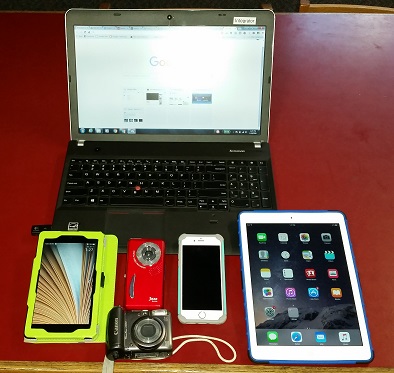
In order for ideal Technology Integration to be possible, one-to-one computer access should be present, so that when the need arises, the tools of choice are at their fingertips and technology use becomes second nature. The idea of 1:X computing, “one-to-many” computing (4), making many different devices available to students to choose from, and makes choice possible. Enabling students to choose the best “tool for the job”, will equip them with the skills necessary to enable them to transfer knowledge to other tasks, whether it be at school, at home, or in a job later in life.
“The biggest risk is not taking any risk... In a world that changing really quickly, the only strategy that is guaranteed to fail is not taking risks.”     Mark Zukerberg, Facebook (5)
Implementing an Educational Technology program in a K-8 school offers unique challenges and wonderful opportunities. By collaborating with teachers at each grade level, entrance expectations are determined at each grade level, thus creating a skill map to use as a guide. The mission will be to ensure that students have the skills, the tools, and the opportunity to show their individual strengths and talents, by providing them with the opportunity to choose the tools that they feel best meet their needs, while meeting the requirements of their assignments, and ensuring a balance exists between the time using digital resources and traditional resources . Digital tools make it possible to transform school models from "lecture, demonstrate, memorize, and regurgitate" models to "facilitate, explore, discover, and create" models.
Works Cited:

1.
(2014). Office of Educational Technology. Retrieved January 23, 2016, from http://tech.ed.gov/.

2. (2009). Big Thinkers: Howard Gardner on Multiple Intelligences ... Retrieved January 23, 2016, from http://www.edutopia.org/multiple-intelligences-howard-gardner-video.

3. (2013). Children, Adolescents, and the Media - Pediatrics - AAP News. Retrieved January 23, 2016, from http://pediatrics.aappublications.org/content/early/2013/10/24/peds.2013-2656.

4. (2013). '1:X Computing' Aims to Tailor Digital Tools to Learning Tasks. Retrieved January 23, 2016, from http://www.edweek.org/ew/articles/2013/10/02/06el-1x.h33.html.

5. (2010). Mark Zuckerberg Quotes - BrainyQuote. Retrieved January 23, 2016, from http://www.brainyquote.com/quotes/authors/m/mark_zuckerberg.html.

6. (2014). How much screen time is OK for my kid(s)?. Retrieved January 23, 2016, from https://www.commonsensemedia.org/screen-time/how-much-screen-time-is-ok-for-my-kids.


Monday, January 11, 2016

Course Reflection Blog-EdTech 541-4202

Course: Integrating Technology into the Classroom Curriculum

Website for Course Projects

This blog will be used for the course reflections in the above course.